Use case
Help during the meeting, not a transcript after it
MuteHint listens to the meeting, picks out the question that was just asked and shows a short thing you can say while the room is still waiting.
The Meeting profile is in paid plans, from $25 with a 7-day money-back guarantee. The free plan lets you try the app with the Interview profile.
- No card needed
- macOS and Windows
- 7-day money-back guarantee
What you see during the call
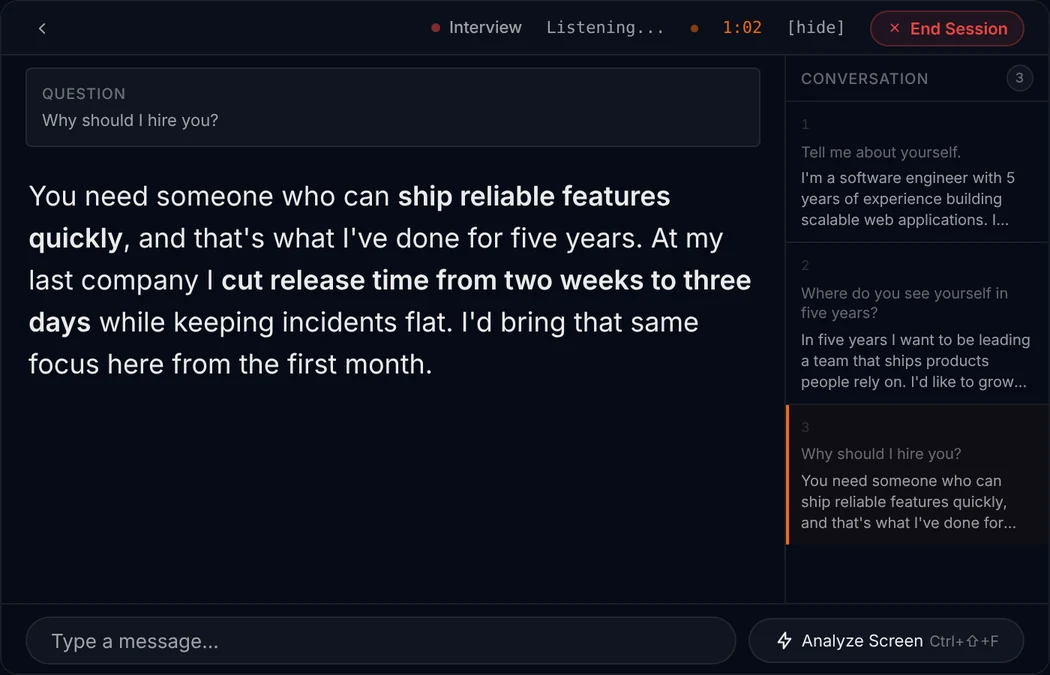
Three things, the same on every call. No scores, no labels, no checklist to read.
1
The question that was just asked
MuteHint listens to the other side of the call and picks out the question. It shows it in a small Question box, so you can check it heard the same thing you did.
2
A short answer you can say
Below the question is a few sentences in plain spoken language, with the key phrases in bold. Read it at a glance, then say it your way.
3
The next step, when you ask
Press Ctrl+Enter (Cmd+Enter on a Mac) and it gives you the next step. A Conversation panel keeps the questions asked so far.
For example
They ask: “So who is picking this one up?”
I can take that one. I will have a first draft by Thursday and share it with the group. If anyone has numbers from last quarter, send them to me before then.
What it does not do
- MuteHint does not write meeting summaries. If you need notes afterwards, pair it with a notetaker.
- It does not keep a list of action items or follow-ups.
- It does not join the meeting and it keeps no recording of the audio. It does save the answers it showed you and the context you typed.
Make it about you
Give it the agenda and your numbers
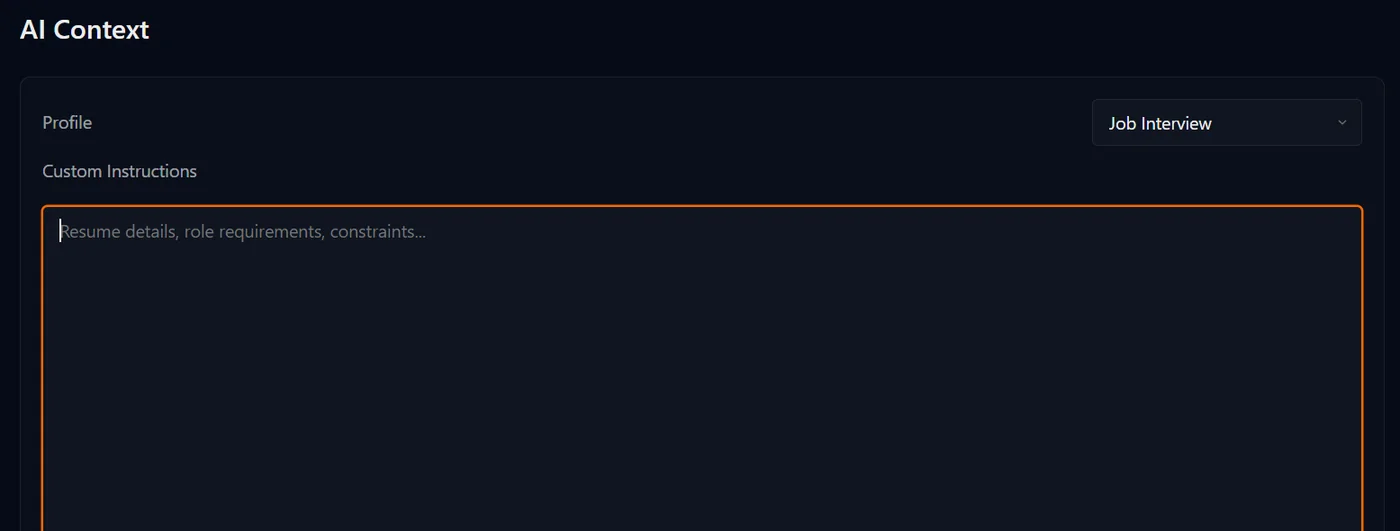
Before the meeting, choose the Meeting profile and paste in what you may be asked about.
- The agenda, and what you want out of the meeting.
- The numbers and dates you may be asked for.
- Who is in the room and what each person cares about.
The text you paste is sent to your AI provider and saved with your session on MuteHint's servers.
Set up before the call
Step 1
Create a free account
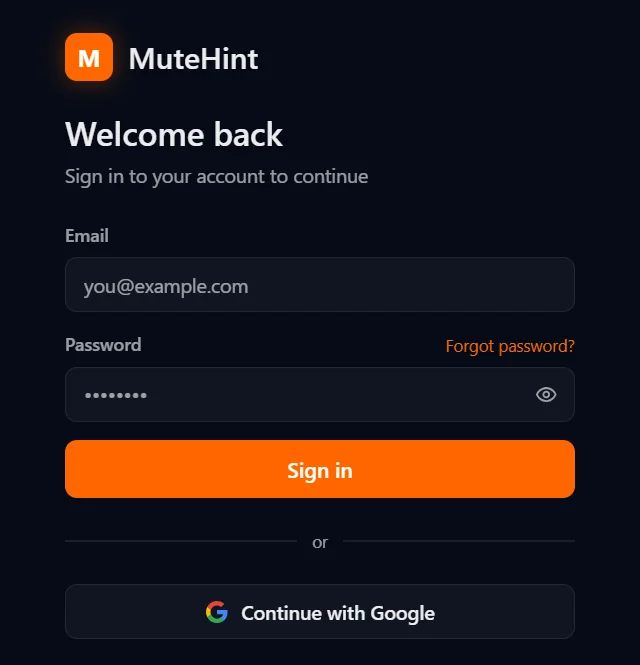
Sign up, then download the app for macOS or Windows from your dashboard. Sign in with your email or with Google.
Step 2
Add your own AI key
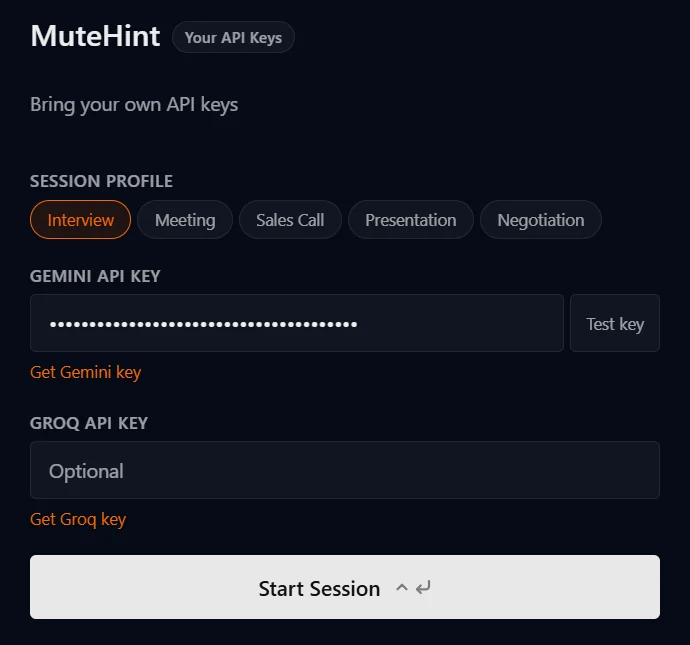
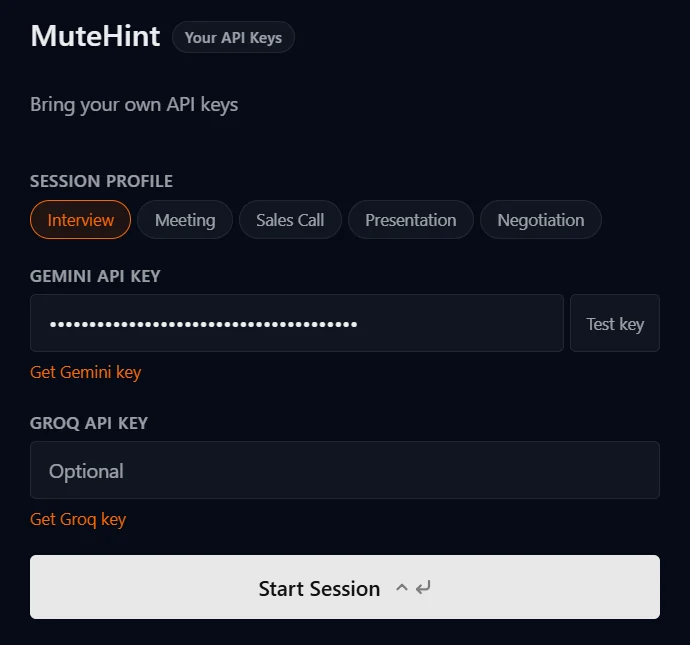
Paste a Gemini API key from Google AI Studio into the app and test it with one click. You pay Google directly, with no markup from us.
Step 3
Pick a profile and join
Start a session before your call. MuteHint listens, picks out the question you were just asked and puts an answer you can say on screen, with the key phrases in bold.
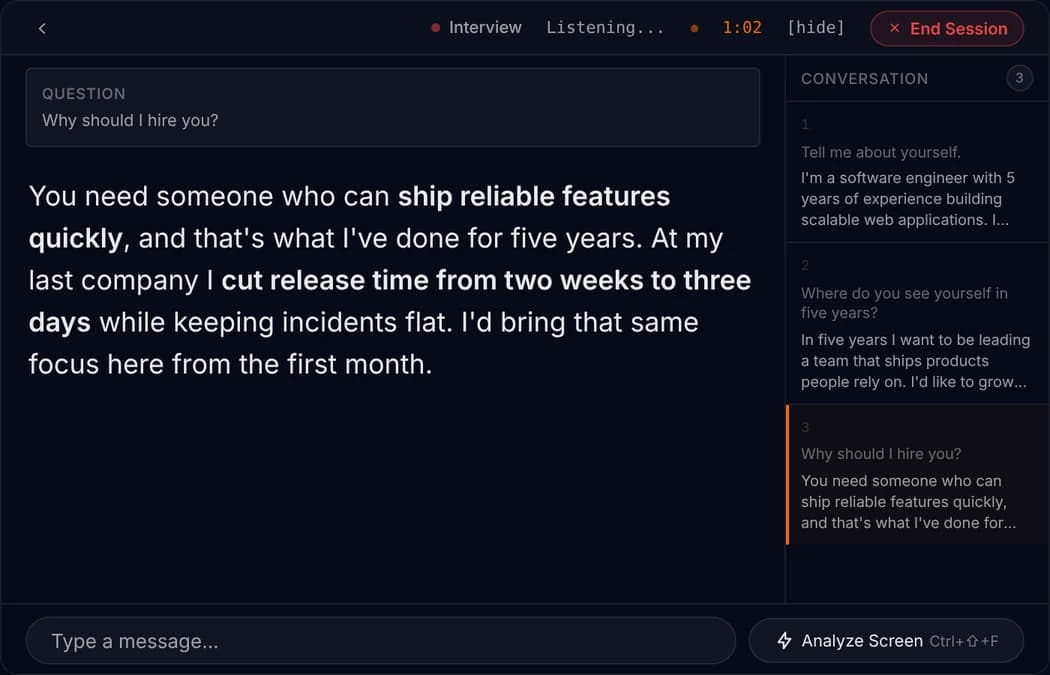
Example session. The question and answer are samples, shown on the app's live screen.

Say one clear thing when the room turns to you
Most of a meeting is listening. The part people remember is the few seconds when someone turns to you and asks what you think, who owns this, or when it will be done. A vague answer there costs more than staying quiet for the rest of the hour.
A good reply in a meeting is short. It answers the question, names an owner or a date, and stops. “I can take that, first draft by Thursday” does more than two minutes of background.
That is the kind of line MuteHint puts on your screen. Give it the agenda and the numbers you may be asked about before you join, and its suggestions will use them. Read the line, then say it in your own words.
MuteHint helps while the meeting is happening. It does not write a summary afterwards. If you need notes, pair it with a notetaker.
Questions people ask before they try it
Does MuteHint join the call or show up as a participant?
No. It listens to the sound on your own computer. Nothing joins the meeting, and there is no bot in the participant list.
Can the other side see MuteHint during my call?
No. The hint window appears only on your screen, and MuteHint never joins the call as a participant. Click-through mode (Ctrl+M, or Cmd+M on a Mac) lets your mouse keep working with the call underneath, and Ctrl+\ (Cmd+\ on a Mac) hides the window instantly.
What happens when I share my screen?
MuteHint asks your operating system to leave its window out of screen sharing and recording, so you can share your whole screen. Before a call that matters, share your screen once with a friend or a second device and check. If the window ever shows up on your setup, Ctrl+\ (Cmd+\ on a Mac) hides it while you share.
Does it listen to me or to the other person?
By default it listens to the other side: the sound coming out of your computer. In Settings you can switch it to your microphone, or to both.
Does MuteHint record my calls?
No. Audio goes straight from your computer to Google using your own API key. It is not sent to MuteHint and we keep no recording. On a paid plan, MuteHint saves the hints shown to you and the context you typed for the session, so they can appear in your history. On the Free plan, which has no history, they are not saved.
Does MuteHint write a summary of the meeting?
No. MuteHint shows suggested answers during the meeting. It does not write summaries or track action items. Paid plans keep a history of the answers it showed you. If you need meeting notes, use a notetaker alongside it.
Your next call is coming either way. Take a coach in with you.
Start free with the Interview profile: 2 sessions a week, 15 minutes each. The Meeting profile is in paid plans, from $25.
No card needed. Paid plans from $25, with a 7-day money-back guarantee.