Security and privacy
Your audio goes to your AI provider, not to us
Here is exactly what leaves your computer and where it goes.
- No card needed
- macOS and Windows
- 7-day money-back guarantee
What goes where
Three places. Each list says what goes there.
Stays on your computer
- Your Gemini and Groq API keys
- Your app settings and shortcuts
Goes to your AI provider
- The call audio, live, using your own key
- A screenshot, only when you press Analyze Screen
- The context you typed for the session
Saved by MuteHint
- Your account email, plan and devices
- Each session's time, length and profile
- On paid plans: the hints shown to you
- On paid plans: the context you typed for the session
MuteHint never receives or stores your call audio or your API keys. Payments are handled by Lemon Squeezy, so we never see your card.
The path of a call
During a session the app sends data in two directions. Your call audio only ever takes the first.
1. The call itself
Your computer
The MuteHint app
Call audio, live
The context you typed
Google Gemini
Using your own API key
The suggested answer
Your screen
The hint window, on your own screen
2. Your account and history
Your computer
The MuteHint app
Account email, plan and devices
Session time, length and profile
The hints shown and the context you typed
MuteHint servers
Sign-in, your plan and your session history
Call audio and API keys never take the second path. A screenshot goes to Google only when you press Analyze Screen, which is included in paid plans. If you add the optional Groq key, the app talks to Groq directly with that key.
How your API key is kept
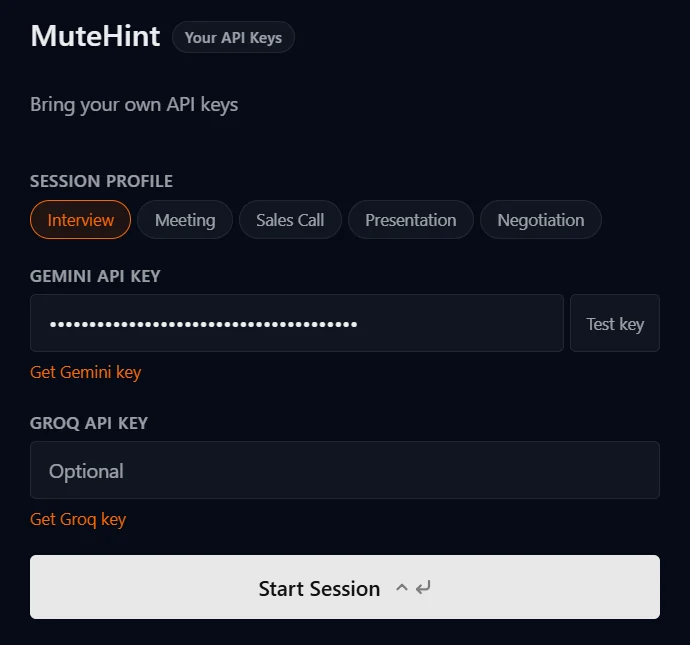
- Your Gemini key, and a Groq key if you add one, are saved on your computer.
- The app uses the key to talk to Google directly. It is not sent to MuteHint's servers.
- The app encrypts it using your operating system's built-in protection where that is available.
- If that protection is not available on a machine, the key is saved there without encryption. Do not add your key on a computer you share.
- You can delete the key in Google AI Studio whenever you like. That turns it off for every app that used it.
Companies that handle data for us
Gemini is not on this list. It runs on your own key and your own Google account, so that part is between you and Google.
| Company | What it handles |
|---|---|
| Supabase | Hosts our database: your account, your sessions, the hints shown and the context you typed. |
| Vercel | Hosts this website and our servers, and measures how fast the website's pages load. |
| Lemon Squeezy | Takes payments as the merchant of record. Your card details go to them, not to us. |
| Resend | Sends our emails, such as the code that verifies your address or a password reset link, and delivers messages from the contact form. |
| Signs you in, if you choose Continue with Google. | |
| PostHog | Website analytics. It loads only if you accept cookies on this website. It is not in the desktop app. |
The legal detail, including your rights over your data, is in these two documents.
Short answers
The four questions careful people ask
Does MuteHint record my calls?
No. Audio goes straight from your computer to Google using your own API key. It is not sent to MuteHint and we keep no recording. On a paid plan, MuteHint saves the hints shown to you and the context you typed for the session, so they can appear in your history. On the Free plan, which has no history, they are not saved.
What does MuteHint store about me?
Your account email and plan, the devices you sign in on, and for each session its time, length and profile, and, on paid plans, the hints that were shown and the context you typed in. We do not store call audio or your API keys.
Is my API key safe?
Your key is kept on your own computer and is used to talk to Google directly. It is not sent to MuteHint's servers. The app encrypts it using your operating system's built-in protection where that is available.
What happens when I share my screen?
MuteHint asks your operating system to leave its window out of screen sharing and recording, so you can share your whole screen. Before a call that matters, share your screen once with a friend or a second device and check. If the window ever shows up on your setup, Ctrl+\ (Cmd+\ on a Mac) hides it while you share.
Use it where it is allowed
Some interviews, tests and employers ban AI help. Respect those rules. Our Terms do not allow use where it is prohibited.
Your next call is coming either way. Take a coach in with you.
Two free 15-minute sessions every week. Set up before your call starts.
No card needed. Paid plans from $25, with a 7-day money-back guarantee.